Skip to content

Kismet Arts Tangent

Art Collective

    • Kismet Arts Tangent
    • About
    • Blog
    • Contact
    • Donate

recent posts

  • Photo shoot with Kayleigh Shawn
  • Testimonials
  • Fractures Poem
  • Poetry
  • Pixel art products

  • Instagram
  • Everchanging Timeline for Special Topics Design Project

    October 15, 2012

    Here’s my initial projectpaperwork (pdf)

    So, This is the changing document to document what I am doing with my special project and what I think I am going to do. I won’t delete the timeline but rather reflect where I am veering and for what reasons.

    Week 1 (10-10):
    What I planned to do: Submit Timeline and Start Getting Familiar with Interface
    What I ended up doing: Link to Blog Post introduction to after effects, viewed basic tutorials

    Week 2 (10-17): 
    What I planned to do: Re-Submit Timeline (via this blog post) and Produce a basic video using one new trick learned from a tutorial, Create a sense of motion without video and Masking
    What I ended up doing: Link to Blog Post produced files to work with for small and basic after effects project based on a basic tutorial

    Week 3 (10-24):
    What I planned to do: Integrate type and music
    What I ended up doing:   produced video with animated psd files (did not add type and music isn’t integrated…)

    Week 4 (10-31):  Benchmark Day– Present uploaded youtube videos reflecting my progress in a one-on-one meeting with Marc
    What I planned to do: Parenting Nesting and expression
    What I ended up doing: Looking at kinetic type tutorial. Extended to next week.

    Week 5 (11-7):
    What I planned to do: Create Story Boards and Creative Brief for integrating video (so far my idea is something playful like this video I made over the summer but for After Effects)
    What I ended up doing: Last week’s assignment took longer than I thought. Some frustrations on the way, for example, audio. Work on presentation for next week. Link to Blog Post 

    Week 6 (11-14): Presentation in front of class (updated event)
    What I planned to do: Work and continue work on integrating features (starting to comp effects)
    What I ended up doing: Link to Blog Post  Collected and sorted data

    Week 7 (11-21): Benchmark Day: Present idea, story boards and little samples of work, get critique from Marc in one on one meetingMarc not present.
    What I planned to do: Make doodles into vectors and animate.
    What I ended up doing: Link to Blog Post   I had made some work on animating with layers and compositions, but I still didn’t understand the export process. No post this week.

    Week 8 (11-28):
    What I planned to do: Continue adding and finessing work into Rough Draft
    What I ended up doing: Link to Blog Post  Not Yet Completed

    Week 9 (12-5): Benchmark Day: Get critique from Marc in one on one meeting discussing Rough Draft
    What I planned to do: Continue Work on Video
    What I ended up doing: Link to Blog Post  Not Yet Completed

    Week 12 (12-12):
    What I planned to do: Present to Class video exploring After Effects techniques
    What I ended up doing: Link to Blog Post  Not Yet Completed
    sharing options:

    • Share
    • Share on Tumblr (Opens in new window) Tumblr
    • Print (Opens in new window) Print
    • Share on LinkedIn (Opens in new window) LinkedIn
    • Share on X (Opens in new window) X
    • Share on Reddit (Opens in new window) Reddit
    • Share on Pinterest (Opens in new window) Pinterest
    • Share on Facebook (Opens in new window) Facebook
    • Email a link to a friend (Opens in new window) Email
    Like Loading…
  • Ravenna Gardens: Phase 3

    October 15, 2012

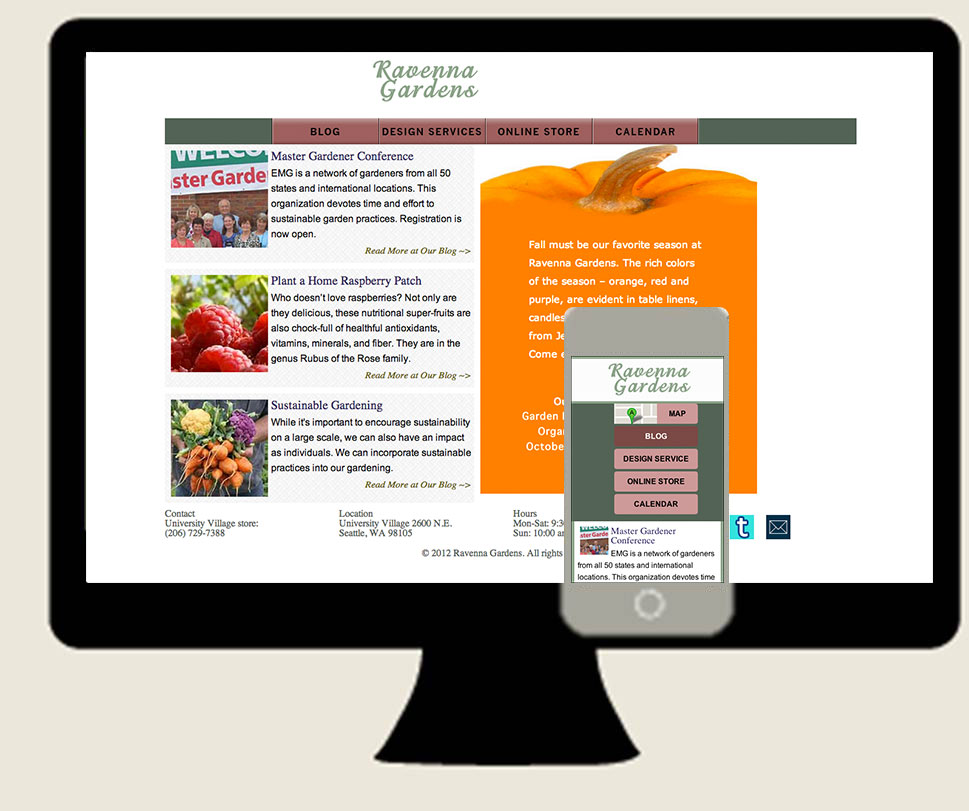
    Ravenna Gardens responsive website desktop and mobileKatsite Project 1 Today, after 4 hours at the computer, I finished the second iteration of this website and styled it for mobile. I once again, made a few deviations from my wire frame. As a response to last week’s critique, I’ve created a lot of white space. That includes putting boxes around the text in the footer (for mobile) instead of embedding white text in a dark background. Dark text on light background increases legibility. I rethought the slideshow. I didn’t want all of that blue sky color. With some reworking and copy-pasting of code, I now have two slide shows. Can’t see two? That’s because I created a slideshow with just color and sync’d it up with the other one (and created new images to give an interesting decoration to the top of the color blocks).

    To put the text over the slide show, I learned a little bit about positioning from this article. Just toggling back and forth between the tabs on the article’s interface (you’ll understand after you click) I was able to understand which of the types of positioning I wanted, which was a combination.

    I used Adobe Edge Fonts for the headlines on the little posts excerpts. Amaranth. Very lovely. Everywhere else, I used more standard fonts, Verdana and Arial to increase readability. I imagined some over-40-eyes looking at this for information and I wanted to keep it very accessible. I also added a bit more content (an upcoming event) to utilize the space in the slideshow area (as Fadiman suggested).

    At this point, I am considering polishing the CSS sprites and adding more decoration in the header, perhaps. Let’s see what my client has to say about the translation from desktop to mobile before adding more.

    (Earlier Post Relating to This Project)

    sharing options:

    • Share
    • Share on Tumblr (Opens in new window) Tumblr
    • Print (Opens in new window) Print
    • Share on LinkedIn (Opens in new window) LinkedIn
    • Share on X (Opens in new window) X
    • Share on Reddit (Opens in new window) Reddit
    • Share on Pinterest (Opens in new window) Pinterest
    • Share on Facebook (Opens in new window) Facebook
    • Email a link to a friend (Opens in new window) Email
    Like Loading…
  • Infocamp 2012 Session #1: How to design research for reluctant participants

    October 13, 2012

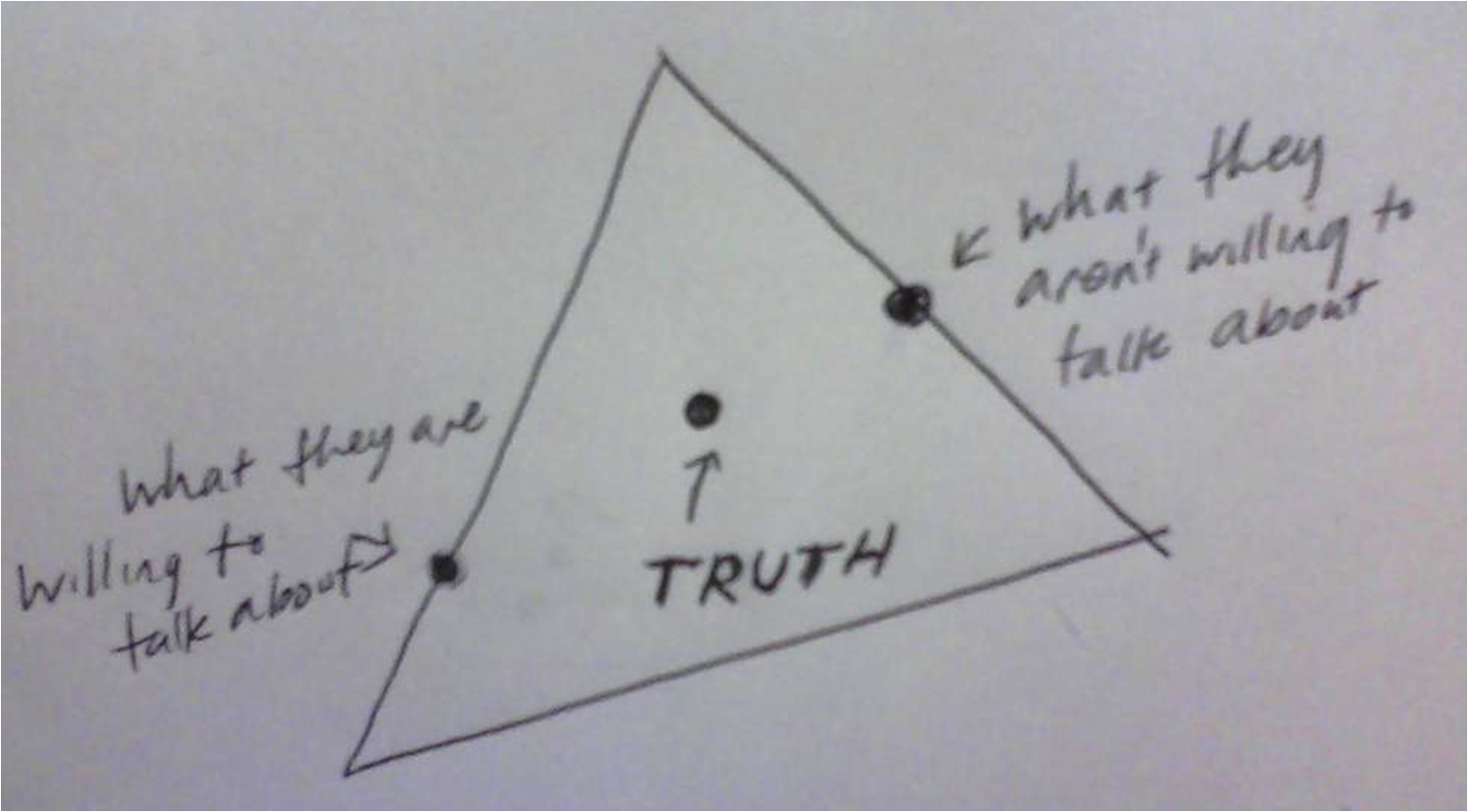
    truth in interviewing triangulate your questionsToday, I am at Infocamp. Right now I am on the lunch break, consolidating my notes from the first session. For those of you who don’t know how infocamp is structured, it is a participant-led series of talks. Seven infocampers had presentations and pitched what they wanted to talk to the infocamp when we met for the opening speaker. The first round of pitches have been done and I picked one of seven to go to: How to design research for reluctant participants.

    The speaker is one of the researchers for makelovenotporn.com. It was his job to explore 1) Why don’t people pay for porn online? And 2) How do we communicate trust in an untrustworthy environment?. I am not going to answer these questions but tell you how he answered these questions through interviewing.

    1. Use a system to help you screen out your research participants. He used the service ethn.io. Make sure your screener is hard so that the people that end up in your study are going to be valuable. A tip: give them an open-ended question in the qualifying questionnaire. This helps you gauge how talkative they will be in the interview.
    2. Generous gratuity. Make it worth their time to participate in your study. (Try not to make it the main focus, otherwise you’ll have participants with dollar signs in their eyes instead of a genuine interest in communicating their feelings.)
    3. Don’t schedule. When you get a submitted questionnaire from a qualified candidate send them an email “Can I call you Right Now?” So that almost immediately after they have been screened, you have them on the phone ready for an interview. This is a good practice because they are still in the mindset of answering questions, specifically your kinds of questions. If you have to schedule…
    4. No shows? Fuggedaboutit. Be adaptive.
    5. During your interview triangulate your questions. (Interview tips below)
    6. Allow for anonymity. Take only first names, general regions vs. specific addresses and don’t record if they are uncomfortable in anyway.

    Interview Tips

    Be comfortable. Be able to probe through difficult questions. If you are uncomfortable, your feelings may be projected onto your interviewee. Build a relationship, rapport, trust, a comfortable space, whatever you can before going into your questions. When getting people to do things you want them to do, try make it seem like it is their idea. This is difficult and situational. It’s also improvisational. During your conversation, try regurgitating something that they said, but frame it in the way that you want it to be done and frame it as a question. (I’ll have to do more research and practice on this tactic.)

    Triangulate your questions. The truth is between what they are not willing to talk about and what they are willing to talk about. Participants will often answer questions obliquely. It’s your job as an interviewer to ask reinforcing questions to get at what they aren’t saying.  Stagger your questions of the same topic you are investigating. Let your interview go conversationally and when a pause comes up, go to your next reinforcing question.

    At this session, the speaker was great and his audience were also informative and had a few tips to share, too. I am looking forward to session #2!

    sharing options:

    • Share
    • Share on Tumblr (Opens in new window) Tumblr
    • Print (Opens in new window) Print
    • Share on LinkedIn (Opens in new window) LinkedIn
    • Share on X (Opens in new window) X
    • Share on Reddit (Opens in new window) Reddit
    • Share on Pinterest (Opens in new window) Pinterest
    • Share on Facebook (Opens in new window) Facebook
    • Email a link to a friend (Opens in new window) Email
    Like Loading…
  • Advertising is not Easy

    October 12, 2012

    Today in Tom’s class. A brief summary: banana cannon, graffiti is an old hat, “You are writing what you think are ads,” prismism. You can’t be successful if you’re always safe, but you have to make sense.You can’t be successful if you don’t give your work the effort it deserves. Okay is failure. 18-year-olds are sophisticated message consumers.

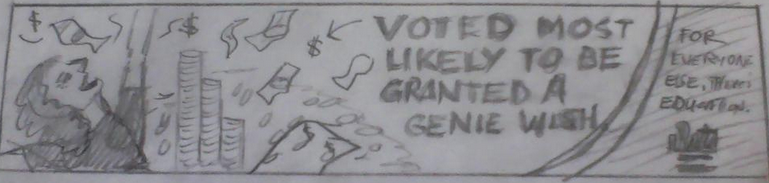
    granted a genie wish advertising thumbnail
    Text reads “VOTED MOST LIKELY TO BE GRANTED A GENIE WISH. For everyone else, there’s education. Seattle Central.”

    This was one (the best one, which says a lot) of the several thumbnails I submitted for critique. It was really heartbreaking having Tom read the headlines out loud as if they weren’t the funniest things ever. He went quickly through them, one after another slowly tearing down my expectations of being hailed the next Julian Koenig (copywriter for Think Small campaign). This is my first hurdle, the first of many times that I will think I am not sharp enough to be in advertising. He said, be straight-faced when I make the joke. Advertising audiences love piecing it together themselves, working for the reward of looking like a Magic Eye painting. I can’t give away the joke. He suggested that maybe from this brainstorm I take the idea of “magic isn’t the answer” with me and try some more at this thumbnailing business. That being said, I have a lot of thinking to do.

    sharing options:

    • Share
    • Share on Tumblr (Opens in new window) Tumblr
    • Print (Opens in new window) Print
    • Share on LinkedIn (Opens in new window) LinkedIn
    • Share on X (Opens in new window) X
    • Share on Reddit (Opens in new window) Reddit
    • Share on Pinterest (Opens in new window) Pinterest
    • Share on Facebook (Opens in new window) Facebook
    • Email a link to a friend (Opens in new window) Email
    Like Loading…
  • Features of InDesign

    October 11, 2012

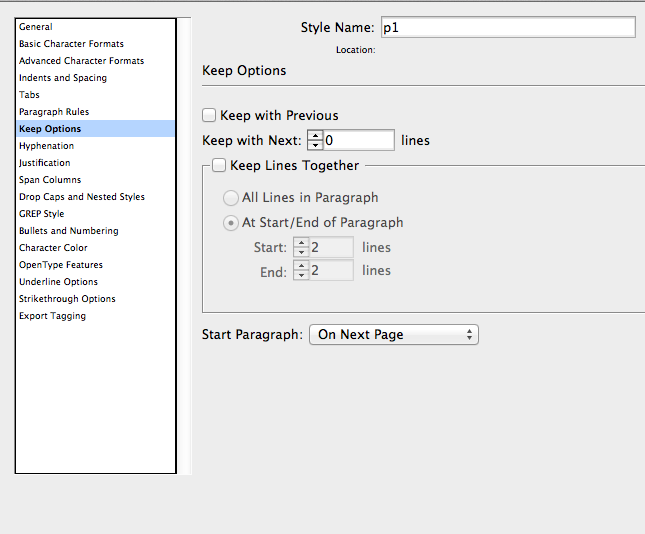
    Screen Shot keep options

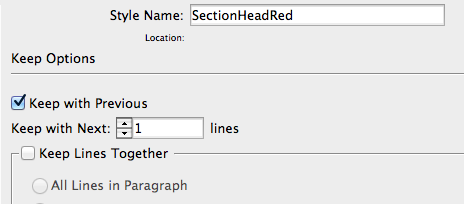
    Keep Options. This blows my mind. What does it mean? Why is it here? It’s a way for your chapters or whatever to always start on the right page, or the left page, or what have you. What are some other features that you might have never bothered to look for and done everything one at a time? Loads. So much that I can’t even begin to blog about it. As a new rule, when you’re in InDesign and have some free time, just explore all the buttons. I think that because the software has to be so versatile, there’s a lot of features that can be creatively applied to achieve the task you want (like negative indentation). There are also a lot of features that can mess you up if you accidentally turn them on and forget about them (again, long list).

    The baseline grid options use leading numbers! The baseline grid also overrides what leading in your paragraph styles you have going on.

    1. set up your baseline grids (Command B)
    2. optical kerning
    3. tell paragraph styles to adhere to baseline grid
    4. flow text
    5. apply body copy to everything
    6. then use Command F to find and apply styles

    –I’ll add to this page as I go if I can. This InDesign is boggling my mind.–

    11-14-12

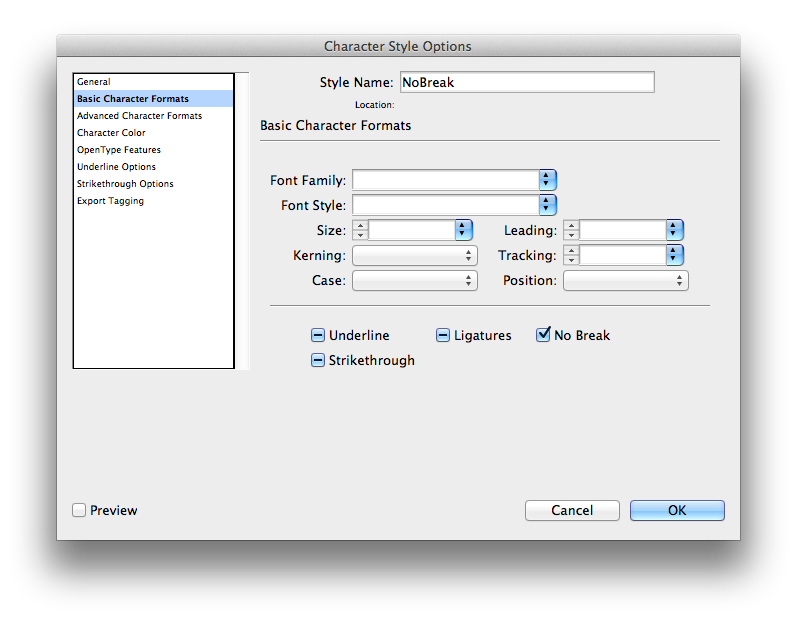
    no break character style
    Good for keeping things together like URLS and proper names

    Eyedropper: double click for style-grabbing fun

    how to keep paragraphs together a bit
    how to keep paragraphs together a bit
    how to keep sectionheads together
    how to keep sectionheads together
    balance columns and align to baseline grid
    gives InDesign permission to mess with your frame to balance columns.
    content collector
    content collector–it also imports container.

    sharing options:

    • Share
    • Share on Tumblr (Opens in new window) Tumblr
    • Print (Opens in new window) Print
    • Share on LinkedIn (Opens in new window) LinkedIn
    • Share on X (Opens in new window) X
    • Share on Reddit (Opens in new window) Reddit
    • Share on Pinterest (Opens in new window) Pinterest
    • Share on Facebook (Opens in new window) Facebook
    • Email a link to a friend (Opens in new window) Email
    Like Loading…
  • Small Website Additions: Favicon and Error Page

    October 11, 2012

    favicon In Web Design class, I find that I feel a little better adding the features favicon and 404 page. They take less than fifteen minutes each for some nice touches to your website.

    What is a favicon? It’s that little icon in the tabs in the browser. After Googling how to Favicon, I found this Favicon wordpress article that lead me to Faviconer. Next time, I am going to Google what I want plus the suffix “er” and see what comes up. I looked up other code for this, but ended up using what Favioner fed me and it worked right away.

    What is a 404 page? It’s that page that comes up annoyingly when you find a broken link or type in an address kind of wrong. This one is an easy tutorial to follow. I recommend to follow best practices and make your error page funny but helpful. (Make sure your linking code is correct. Specifically: http://edison.seattlecentral.edu/~kcount01/ if you were me on the school’s servers.)


    sharing options:

    • Share
    • Share on Tumblr (Opens in new window) Tumblr
    • Print (Opens in new window) Print
    • Share on LinkedIn (Opens in new window) LinkedIn
    • Share on X (Opens in new window) X
    • Share on Reddit (Opens in new window) Reddit
    • Share on Pinterest (Opens in new window) Pinterest
    • Share on Facebook (Opens in new window) Facebook
    • Email a link to a friend (Opens in new window) Email
    Like Loading…
  • Preference Set-Up for InDesign CS6

    October 11, 2012

    Screen Shot highlight options InDesign

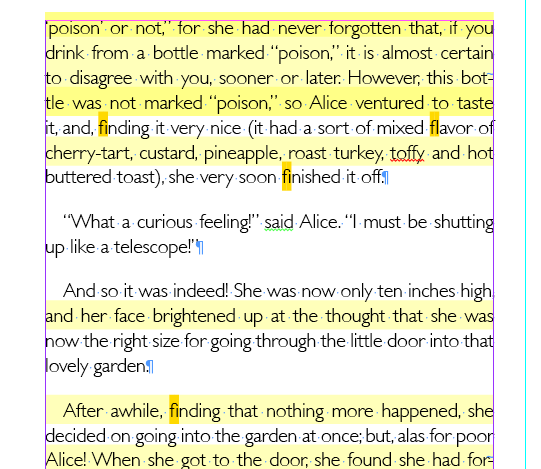
    Today, Chris Sullivan went over Preferences to have set up for working in InDesign. Without opening up a file, but after launching InDesign, you can change the defaults for the rest of the time you are working with the software. Here’s what I recommend changing from the standard default. You can change these when you are working on specific documents that may require other settings, but this is a great place to start.

    List of things to change:

     Set your workspace to [advanced] (located in the upper right corner)

    (InDesign->Preferences->Type)

    Check Enable in Layout View
    Check Delete Empty Pages

    (InDesign->Preferences->Composition)

    Check everything in the highlight section

    (InDesign->Preferences->Units & Increments)

    The cursor key: .003″

    Kerning/Tracking: 10/1000em

    Rulers: [inches]

    Keyboard increments: 1pt

    (InDesign->Preferences->Spelling)

    Check Enable Dynamic Setting (typos look very unprofessional)

    (InDesign->Preferences->File Handling)

    Snippet Import… Position at [Original Location]


    And there you have it.


    sharing options:

    • Share
    • Share on Tumblr (Opens in new window) Tumblr
    • Print (Opens in new window) Print
    • Share on LinkedIn (Opens in new window) LinkedIn
    • Share on X (Opens in new window) X
    • Share on Reddit (Opens in new window) Reddit
    • Share on Pinterest (Opens in new window) Pinterest
    • Share on Facebook (Opens in new window) Facebook
    • Email a link to a friend (Opens in new window) Email
    Like Loading…
  • Introduction to After Effects

    October 10, 2012

    As part of my special project for this quarter, I will be curating a multi-faceted course companion for After Effects.

    Introduction:

    After Effects is an Adobe Program (exports .aep), very similar in its design as its buddies Photoshop, Flash, and PremierPro. It’s also compatible with these other softwares in the same way that InDesign, Photoshop and Illustrator have some nesting capabilities. As in other Adobe Software, where “artwork” is the file you are creating, in After Effects, you are creating a “composition,” like music– there’s timing involved.

    Like InDesign, until you export as video, your .aep file merely links to existing videos stored on your hard drive and that keeps down file size. It’s more like PremierPro in the interface. A lot of shortcuts are similar between AE and other Adobe programs, ex. shift constrains and spacebar gives you the hand tool. I would recommend being familiar with how layers (especially layer effects) in Adobe programs work before diving into After Effects because it has layers on steroids.

    anatomy of After Effects interface

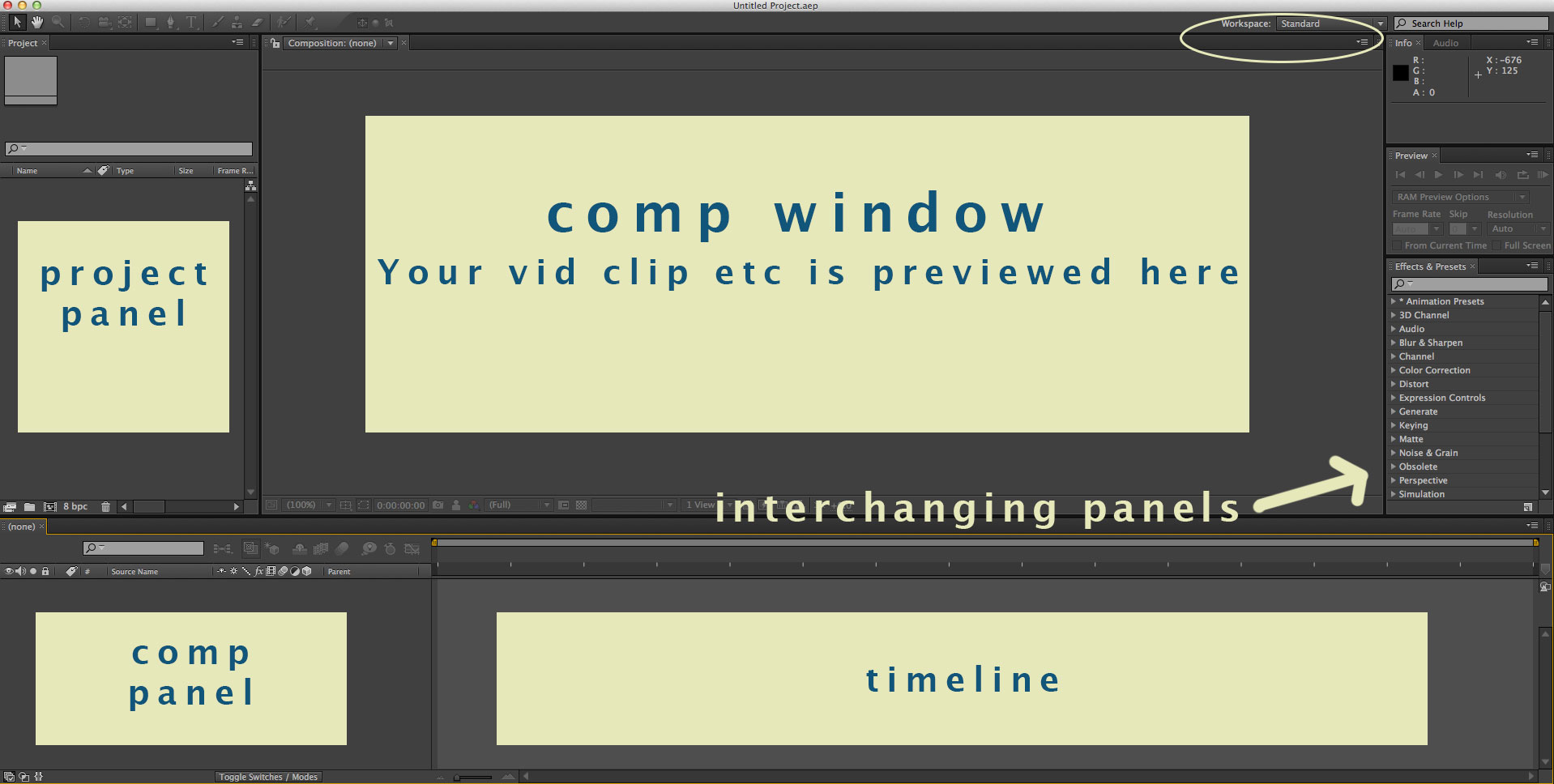
    Anatomy of After Effects:

    Your workspace can be customized, but don’t try that just yet. Just make sure it’s set to standard. (As indicated in the above image by the yellow oval.)

    Introduction video tutorials:

    GreyScaleGorilla— workflow oriented, creating a basic geometric shape animation sequence. The basics of animating and pre-comping. He refers to the shortcuts a bit. Try to keep up with a glossary of shortcuts.  Level: Beginner

    Techtopia— workflow oriented, adding effects and type to an existing video clip. “The ABSOLUTE BASICS of keyframing, masking, video effects, and importing video.” Level: Super Beginner

    This tutorial reflects how we need to build files– with the clever use of shapes. You see a moving fluctuating frame, but it is a series of squares on top of each other.

    What is pre-comping? “PreComposing is the process of creating a separate composition out of one or more layers in your open composition” says Barry Williams. GreyScaleGorilla guy is taking an animation he made and duplicating it and altering it to be a motif for his composition.

    After Effects- Examples of finished product

    Vimeo Gallery— some examples of AfterEffects projects

    sharing options:

    • Share
    • Share on Tumblr (Opens in new window) Tumblr
    • Print (Opens in new window) Print
    • Share on LinkedIn (Opens in new window) LinkedIn
    • Share on X (Opens in new window) X
    • Share on Reddit (Opens in new window) Reddit
    • Share on Pinterest (Opens in new window) Pinterest
    • Share on Facebook (Opens in new window) Facebook
    • Email a link to a friend (Opens in new window) Email
    Like Loading…
Previous Page Next Page

Blog at WordPress.com.


Loading Comments...
 

    • Subscribe Subscribed
      • Kismet Arts Tangent
      • Join 104 other subscribers
      • Already have a WordPress.com account? Log in now.
      • Kismet Arts Tangent
      • Subscribe Subscribed
      • Sign up
      • Log in
      • Report this content
      • View site in Reader
      • Manage subscriptions
      • Collapse this bar
    %d